 NullFace
Photos with a person up close never appear
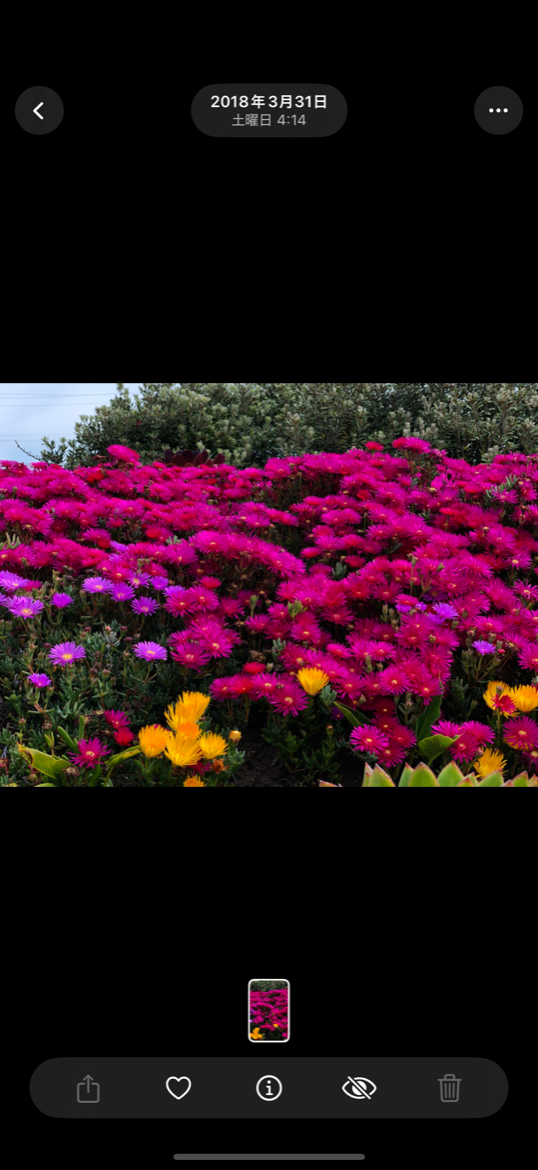
If a face (or a whole body) is larger than your limit, the photo is absent from the grid and from full screen. There is no gesture that reaches it.
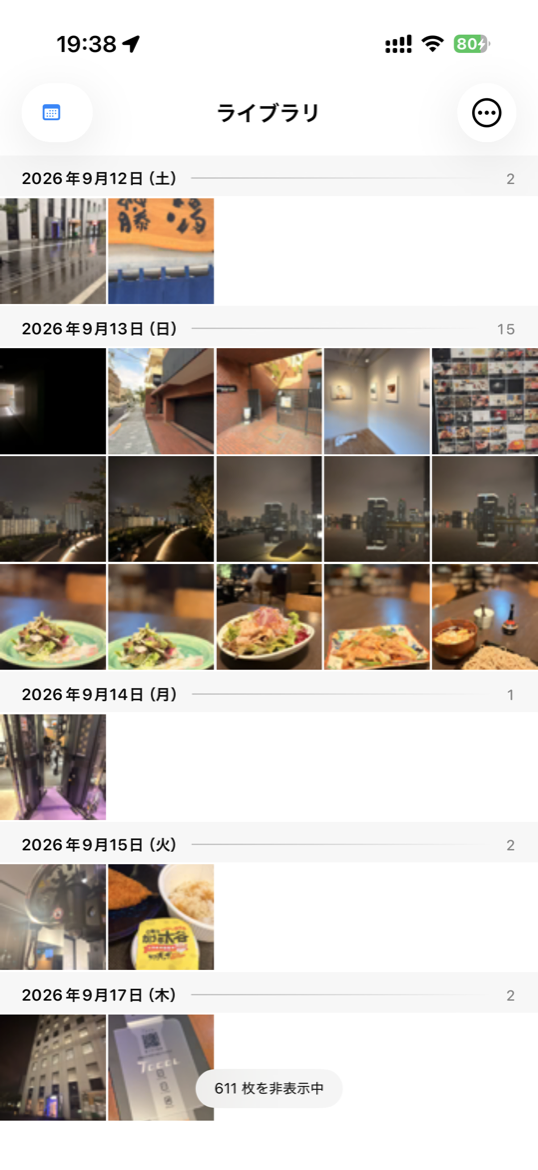
A view-only photo app that hides any photo where a person appears up close — in the grid and in full screen alike. No matter how much the other person swipes, the hidden photos stay out of reach.
You want to show the holiday photos, but not the ones sitting right next to them. Instead of building a new album or grabbing the phone back mid-swipe, you open this app and hand it over.
If a face (or a whole body) is larger than your limit, the photo is absent from the grid and from full screen. There is no gesture that reaches it.
Analysis runs entirely in Vision on your iPhone. The app makes no network requests and keeps no copies — not even thumbnails.
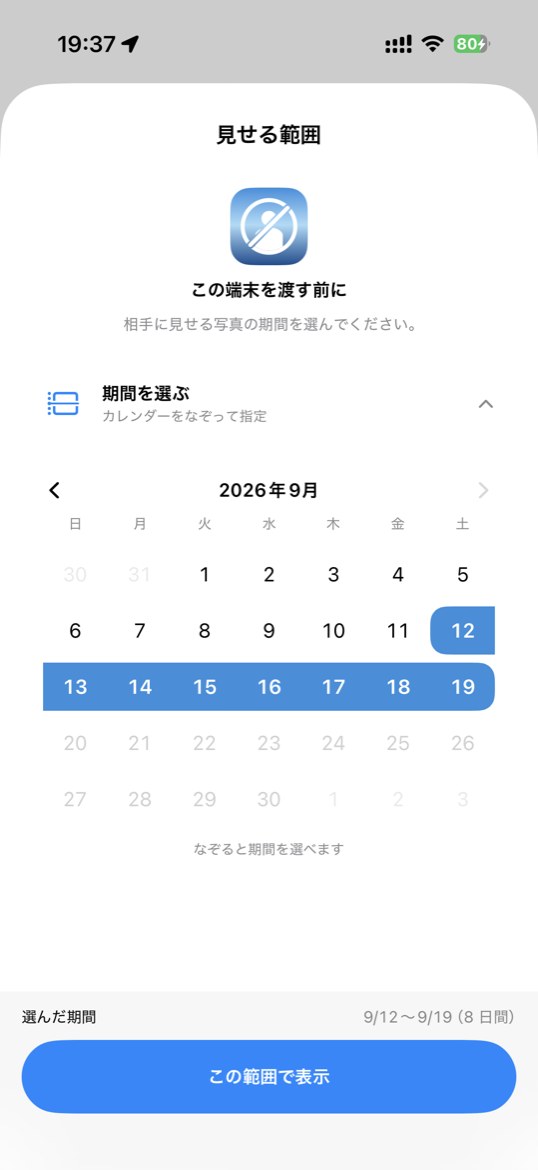
On every launch you choose: everything, the last week, the last month, or any range you drag across the calendar. Until you choose, nothing is shown.
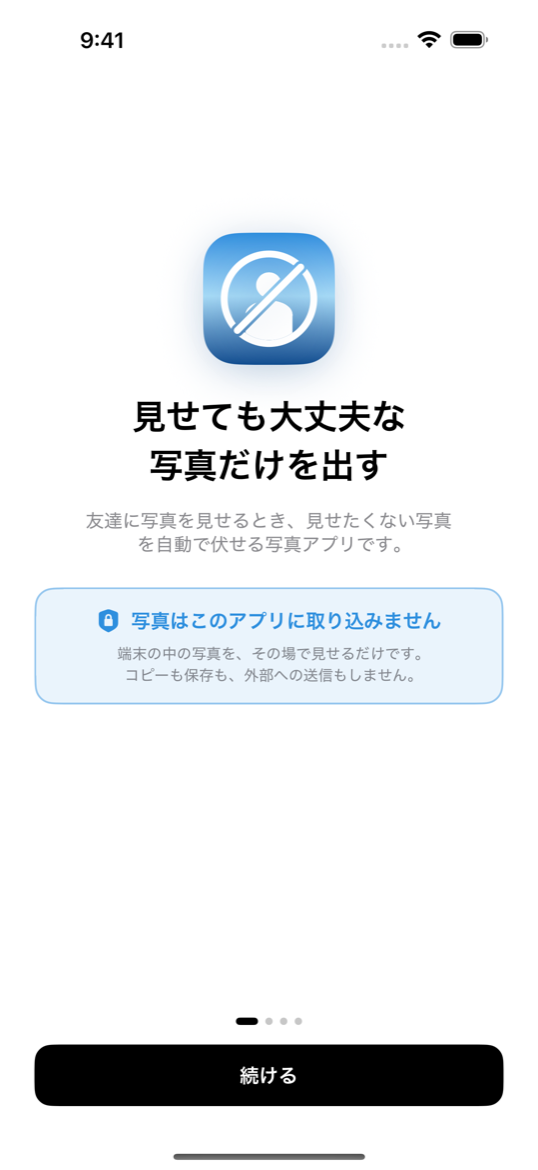
Settings sit behind Face ID or your passcode. Whoever is holding your phone cannot loosen a limit or peek at what is hidden.
A chest, belly, buttocks or underwear is enough to hide the photo, even when no face is visible. An on-device model does the work; again, nothing is uploaded.
Photos that are not analyzed yet, failed to analyze, or are too blurry to judge all stay hidden. Videos are hidden by default too.
Pinch for 1→3→5→7 columns, date headers, tap for full screen, swipe to move on. It behaves like Apple’s own Photos app.
The photos never go anywhere. Only numbers — such as “how big the face is” — are kept in an index on the device.
Only the photos inside the chosen window are read, newest first, and checked for faces, people and body parts with Vision and an on-device model. Progress and how far back it has got are shown on screen.
The longer side of each detected rectangle is converted to pixels of the original image and saved. Only numbers remain; no image is stored.
Each time the grid is built, the saved numbers are compared with your limits. Changing a limit never requires analyzing again.
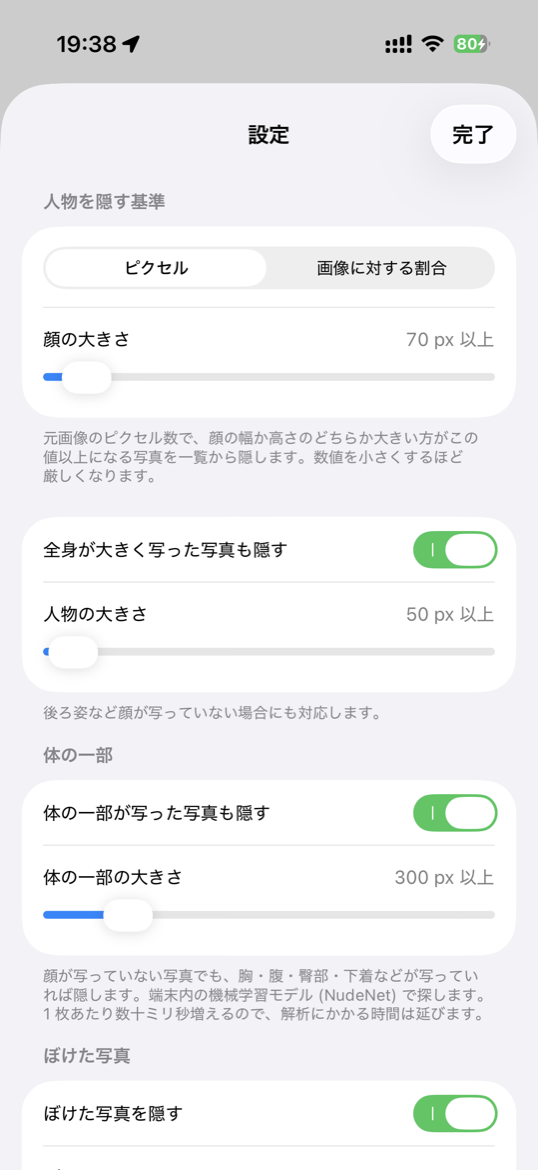
Every limit can be adjusted in Settings. The values below are the defaults.
| Rule | Default | What it does |
|---|---|---|
| Face size | 300px/12% | Hidden when the longer side of a face reaches the given pixels, or the given share of the photo’s long side. Set it to 0 to hide every photo with a face. |
| Body size | Off | Turn it on to also cover photos without a visible face, such as someone seen from behind. |
| Body parts | 300px/12% | Hides photos showing a chest, belly, buttocks or underwear even when no face is visible, using an on-device model (NudeNet). |
| Blurry photos | On | Detection cannot be trusted on a blurry photo, so “nobody is there” and “we cannot tell” are treated differently — the latter is hidden. |
| Screenshots | On | Hides everything that was not taken with a camera. |
| Photos from elsewhere | On | Hides photos without capture information — saved images, shared images, images passed through editing apps. |
| Videos | All hidden | Only a few frames of a video can be checked, so videos stay hidden by default. |
| Window | Chosen at launch | Anything outside the chosen window never appears, whatever its contents. |
Behind Face ID — where the other person cannot go — there is a list of everything currently hidden. Each thumbnail carries the reason (“Face 420px (limit 300px)”, “No capture EXIF”, “Screenshot”), and you can filter by reason. The check before you hand the phone over works from the hidden side too.
The look and the gestures follow Apple’s own Photos app.